Licensing guide
This document explains how Bloom Enterprise licensing works and what you need to do whenever you need licences for more locations, modules, or devices.
Licensing details
Each Bloom Enterprise server has a unique licensing file that sets the creation limit of each resource.
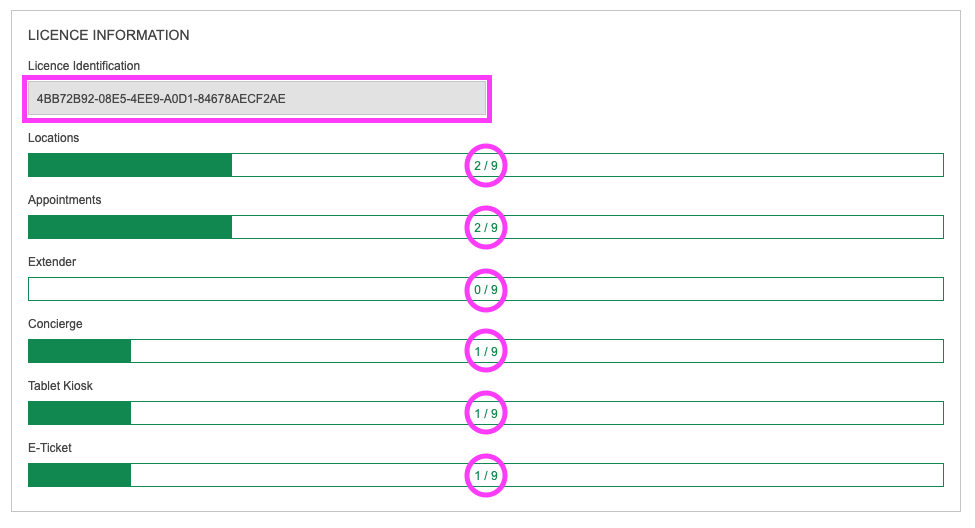
It is composed by the installation ID, that is unique and does not change, and a licence ID, that is updated every time the licence file suffers changes.
The licensing file will, then, determine the:
- Maximum number of locations you can create – to all those locations the queueing module is automatically activated since it is a mandatory module;
- Maximum number of locations in which you can enable the appointments module;
- Maximum number of locations in which you can enable the e-ticket feature;
- Maximum number of Extender devices you can add;
- Maximum number of Concierge devices you can add;
- Maximum number of Tablet Kiosk devices you can add;
Extender, Concierge, Tablet Kiosk - Does not depend on the number of locations. You can have a licence that allows the creation of up to 10 devices and add 3 devices to one location and 7 to another location, for example.
The name of the file can be changed, as long as its extension (.bloom) is not changed.
Add / Update license file
Since the installation must be performed by Q-Better, usually the first licence version is already uploaded after installation. If not, Q-Better will provide the file and you can easily submit it yourself
Whenever you purchase an expansion to the limitations of the current licence, Q-Better will require the licence that is on the system to generate the updated licence. Therefore, you will need to download the licence file from the backoffice (refer to chapter 2.1) and, after you receive the updated file from Q-Better, you need to submit it again.
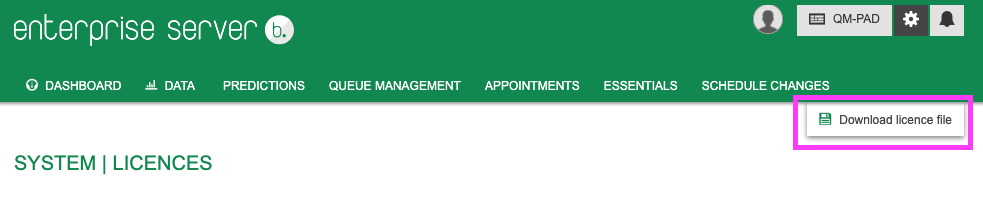
Download licence file
To download the licence file:
- Access Bloom Enterprise’s backoffice and log in.
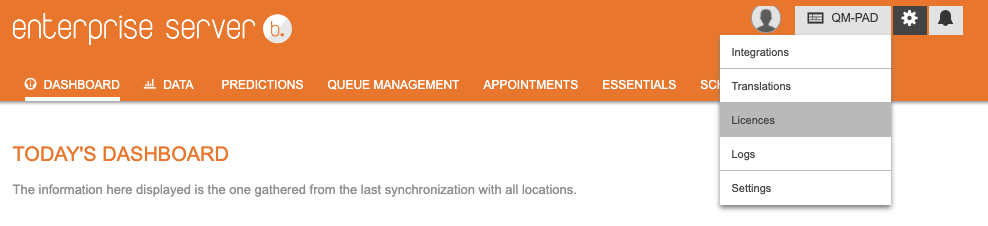
- Go to page Settings > Licences:
- Click on the button ‘Download licence file’:
- Save the file and send it to Q-Better team.
Upload licence file
To upload the licence file:
- Access Bloom Enterprise’s backoffice and log in.
- Go to page Settings > Licences:
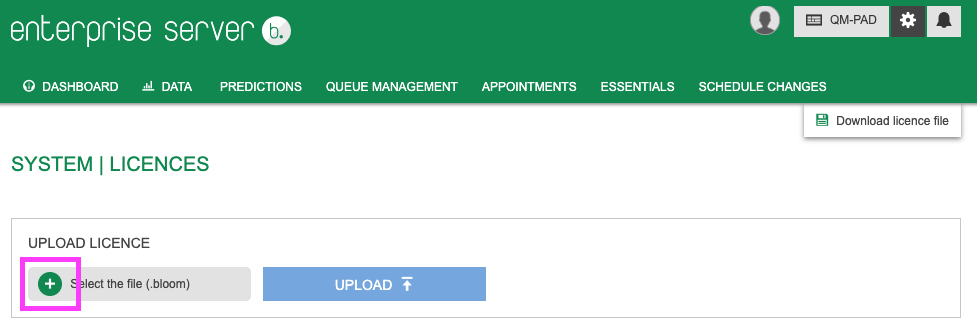
- Click on the button ‘+ Select the file’:
- Select the licence file Q-Better sent you.
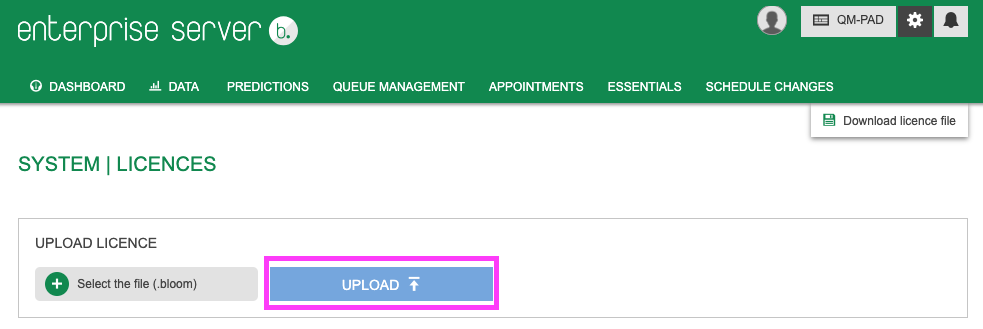
- Click on the button ‘Upload’:
- Check if the licence file was correctly applied by validating the licence ID (provided by Q-Better when the file is sent) and maximum limit of each resource: