Digital Signage HTML5 integration
Content
This document describes the process of integrating the queuing status modules of a Bloom player with any digital signage system compatible with HTML5.
Introduction
This integration procedure, via HTML5, is the easiest and fastest way to integrate the queuing status information from Bloom Enterprise with a third-party digital signage system.
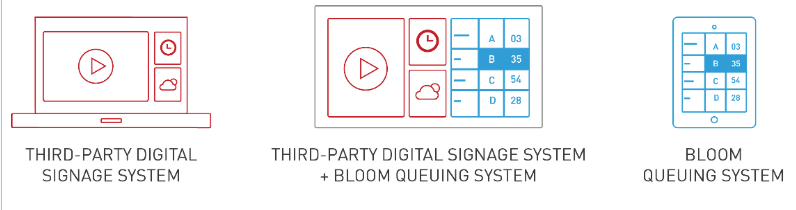
When using this integration, calling sounds will not be available.
The HTML renderer needs to support WebSockets and Canvas2D (HTML5).
It allows the use and creation of different layouts more adjusted to the needs of each organization:
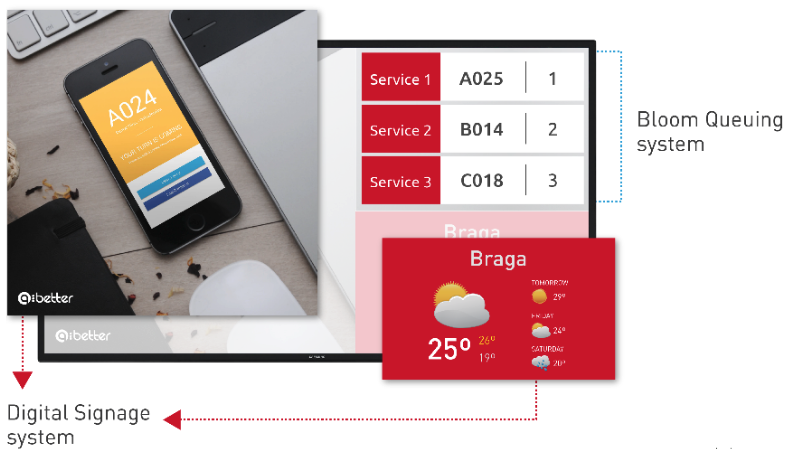
The queuing modules content and design are configured in the backoffice of the system at Queue Management > Masters > Specific Location > Management > Devices > Player’s configuration page.
If you require a different and more flexible layout of the queuing information, it is also possible to integrate via REST API that supports XML and JSON. Contact Q-Better’s team if you need the API documentation.
Configuration
Queuing module 1 configuration
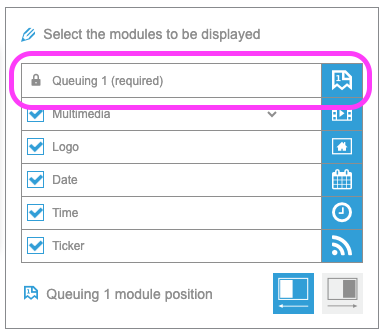
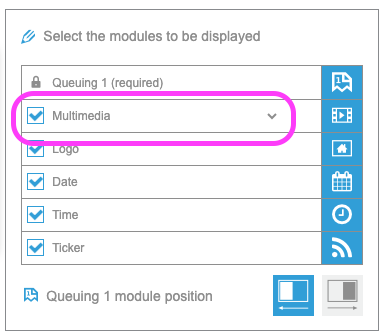
The queuing module 1 is always available by default, since it cannot be disabled from the player:
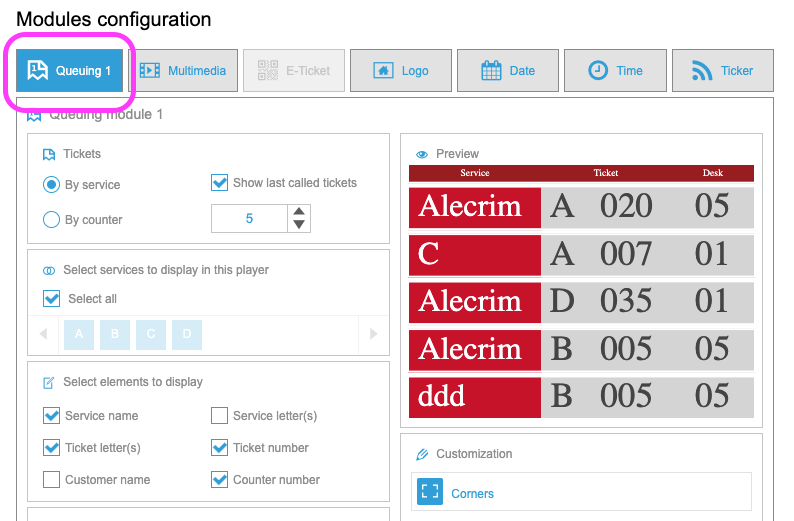
And its configuration can be done in the tab ‘Queuing 1’ available at the bottom of the configuration page:
Queuing module 2 configuration
The queuing module 2 must be first activated in the modules section, by changing ‘Multimedia’ option to ‘Queuing 2’ option:
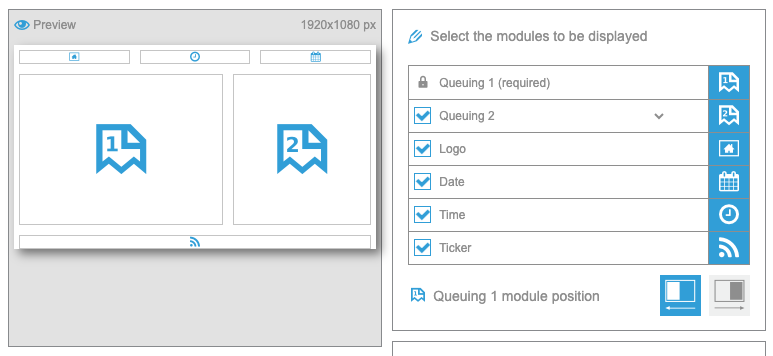
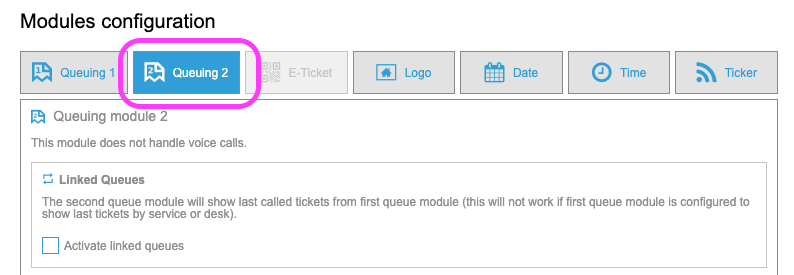
And its configuration can be done in the tab ‘Queuing 2’ available at the bottom of the configuration page:
URL
To integrate the queuing modules of a Bloom player, you first need to check the player’s ID. Open the device’s configuration page and check the URL that appears on the web browser’s address bar:

Queuing module 1 URL
To integrate the queuing module 1 of a Bloom player, integrate the following URL in the digital signage project:
{BLOOM_ENTERPRISE_IP}/qm/api/html5/device_id
http://192.168.154.80/qm/api/html5/9850b036-e853-4d80-ab39-4993f4b3b6a2
Queuing module 2 URL
To integrate the queuing module 1 of a Bloom player, integrate the following URL in the digital signage project:
{BLOOM_ENTERPRISE_IP}/qm/api/html5/device_id?qm=2
http://192.168.154.80/qm/api/html5/9850b036-e853-4d80-ab39-4993f4b3b6a2?qm=2